Google Workspace Integration for Openclaw
This playbook shows how to give Openclaw access to Google Workspace using gogcli, a terminal-first Google client that works well from an agent runtime. The core pattern is simple:
- Create a Google Cloud project
- Enable the Google APIs Openclaw needs
- Create an OAuth desktop client and download its JSON file
- Put that JSON file on the Openclaw host
- Use
gogto authorize the target Google account - Let Openclaw call
gogcommands as needed
This is the best default setup when Openclaw is acting on behalf of a specific human user.
What this gives you
Once configured, Openclaw can use Google Workspace from the shell, including:
- Gmail search, read, send, labels, drafts, and filters
- Calendar listing, search, create, update, and RSVP
- Drive upload, download, search, and sharing
- Docs, Sheets, Slides, Forms, Contacts, Tasks, and more
For most Openclaw deployments, start with OAuth user auth first. Only move to a service account with domain-wide delegation if you need org-wide admin access or Workspace-only APIs that require impersonation.
1. Create the Google Cloud project
Open the Google Cloud Console credentials area and create a project:
- Credentials: https://console.cloud.google.com/apis/credentials
- Project creation: https://console.cloud.google.com/projectcreate
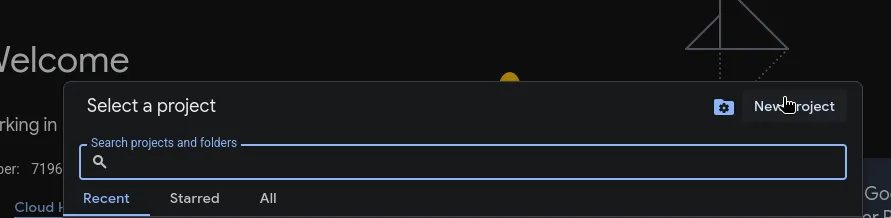
Start by opening the project picker and creating a new project.
Then fill in the project form and create the project.
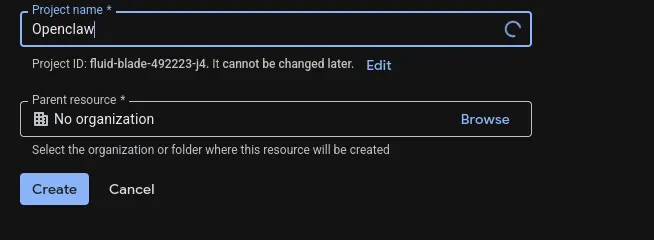
Use a dedicated project for Openclaw rather than reusing a random personal project. That makes it easier to audit scopes, rotate credentials, and separate dev from prod.
2. Enable the APIs you need
Enable only the APIs Openclaw actually needs. Common ones are:
- Gmail API
- Google Calendar API
- Google Drive API
- Google Docs API
- Google Sheets API
- People API
- Google Tasks API
If you expect Openclaw to work across more of Workspace, you can also enable:
- Google Slides API
- Google Forms API
- Google Chat API
- Admin SDK API
- Cloud Identity API
You can enable them from the API Library or directly from the URLs documented in the gogcli README.
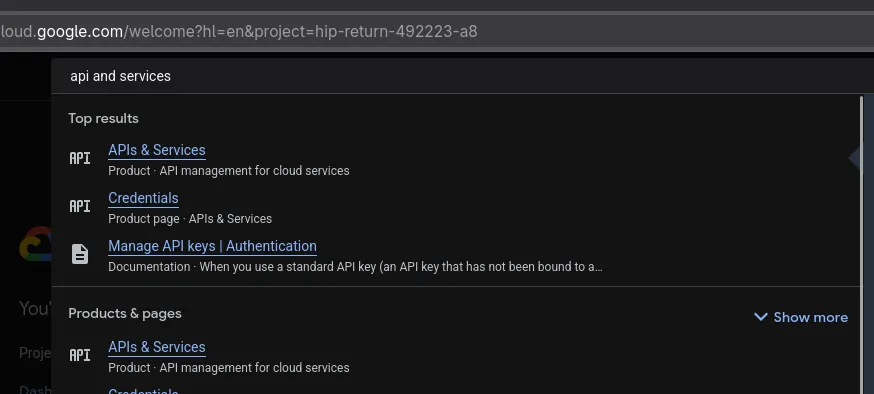
One easy way to get there is to search for api and services from the Google Cloud console.
From the APIs dashboard, click Enable APIs and services.
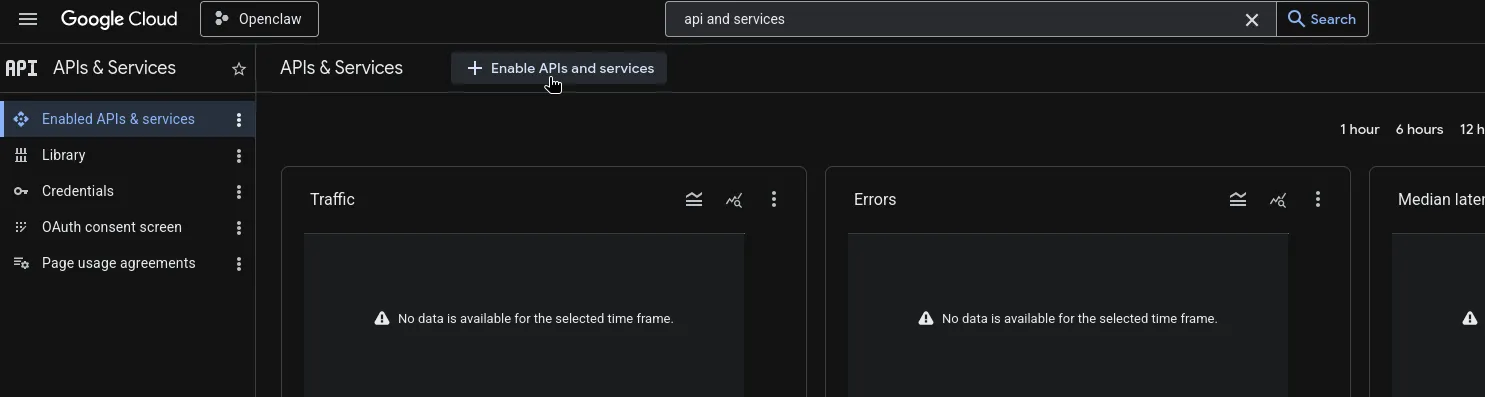
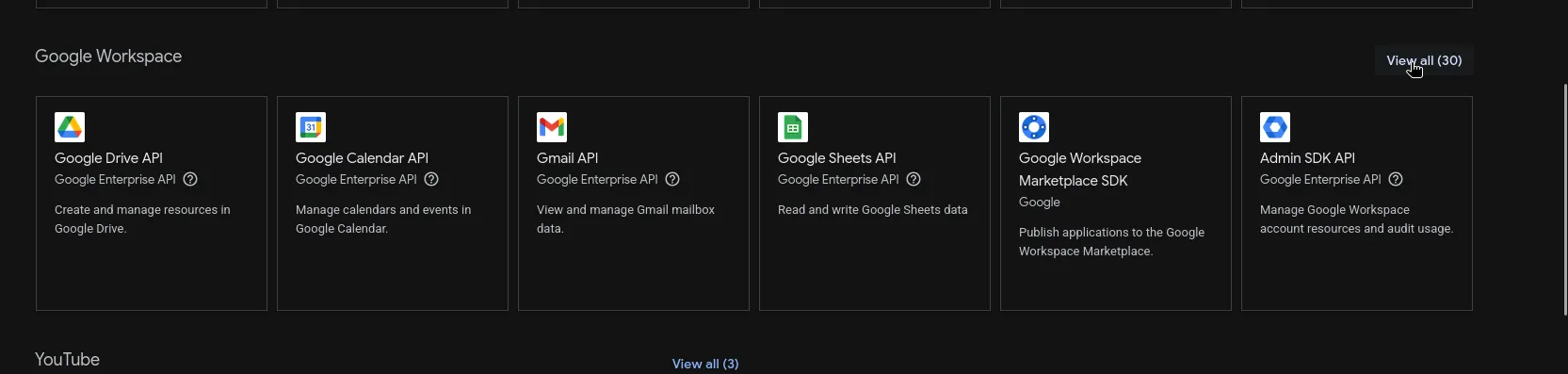
The Workspace API library is where you enable products like Gmail, Calendar, Drive, Sheets, and Admin SDK.
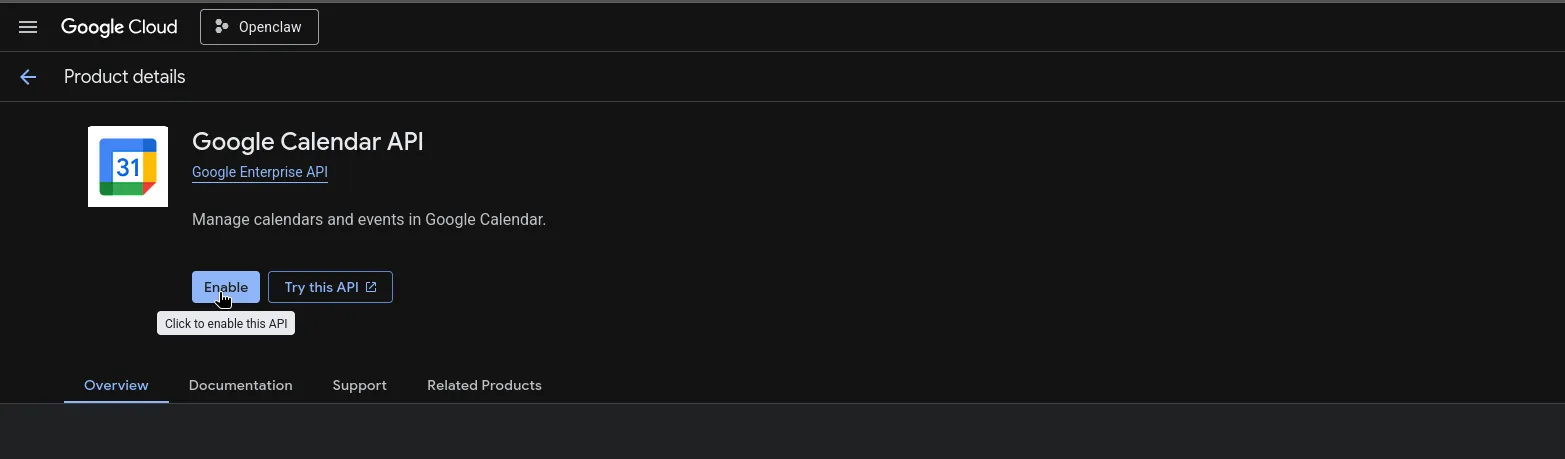
Each API has its own product page. Enable each one Openclaw needs.
3. Configure the OAuth consent screen
Open the branding and audience pages:
- Branding: https://console.cloud.google.com/auth/branding
- Audience: https://console.cloud.google.com/auth/audience
Set up the consent screen for the project. If the app is left in Testing, Google requires you to add every account that will authenticate through this client as a test user.
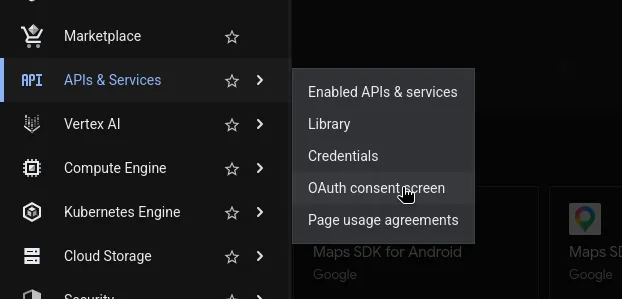
From the main Google Cloud navigation, open the OAuth consent screen.
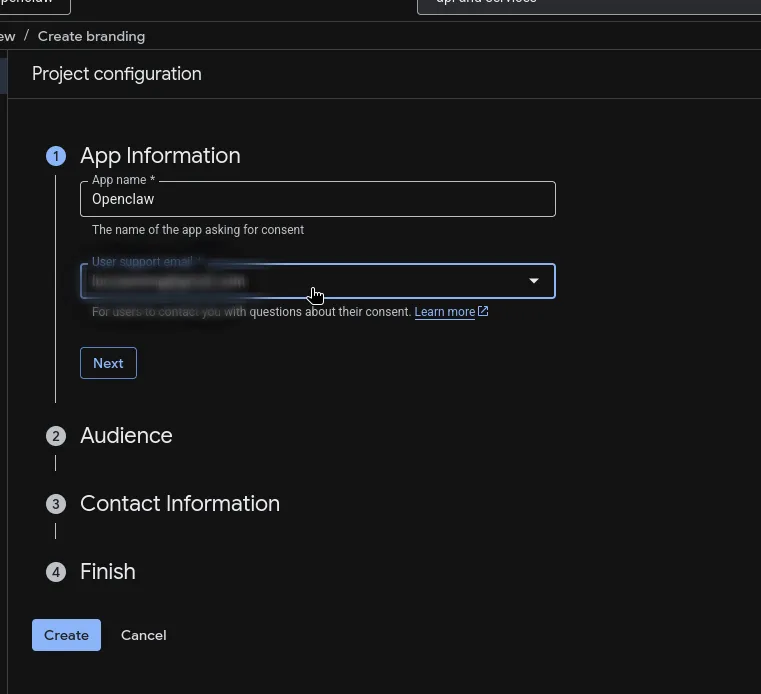
Fill in the branding information for the app.
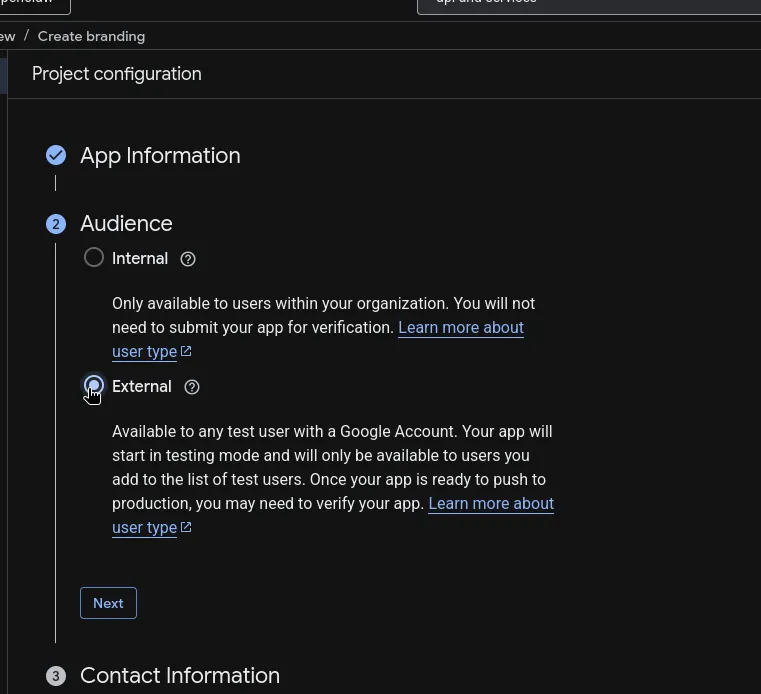
For most Openclaw setups, choose External unless this is strictly limited to users inside your Workspace org and you know you want an internal-only app.
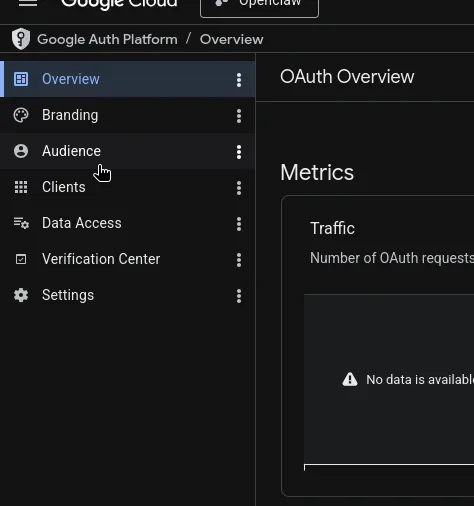
From here go to the audience page, using the left-hand menu.
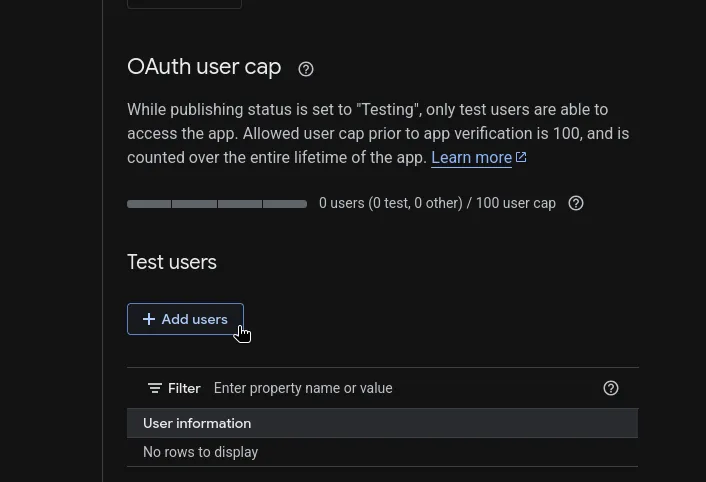
Then add your test users.
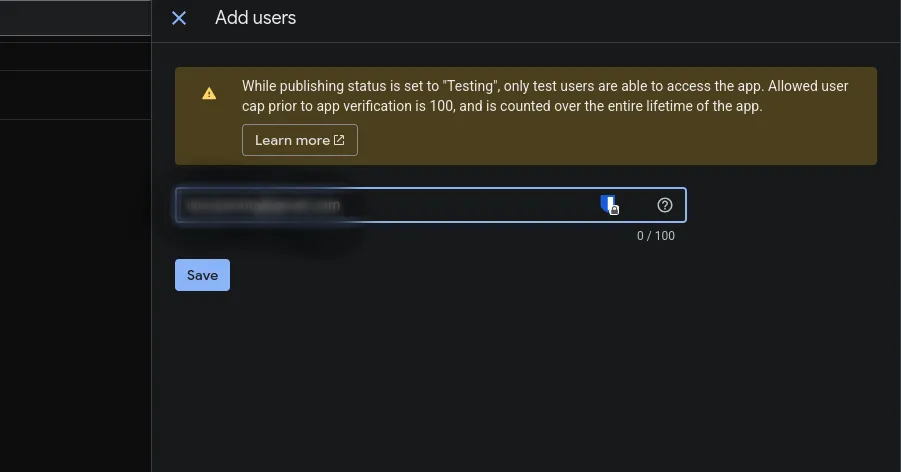
If you skip this, OAuth will usually fail with an access or app-verification error for anyone not explicitly allowlisted.
4. Create the OAuth client JSON
Go to https://console.cloud.google.com/auth/clients and create a client:
- Click
Create Client - Choose
Desktop app - Download the JSON file
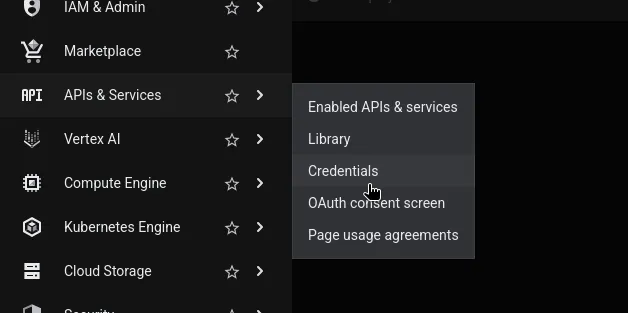
Open the credentials page first.
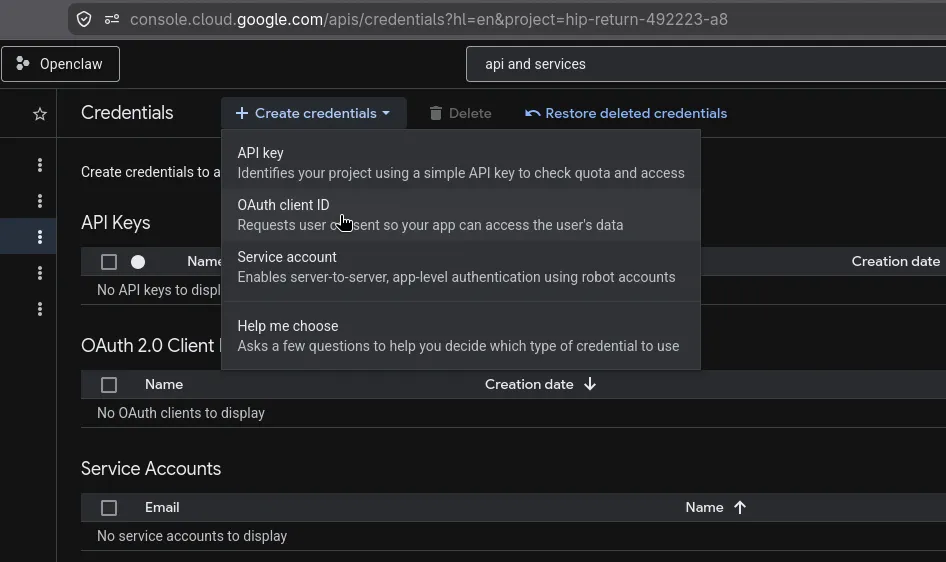
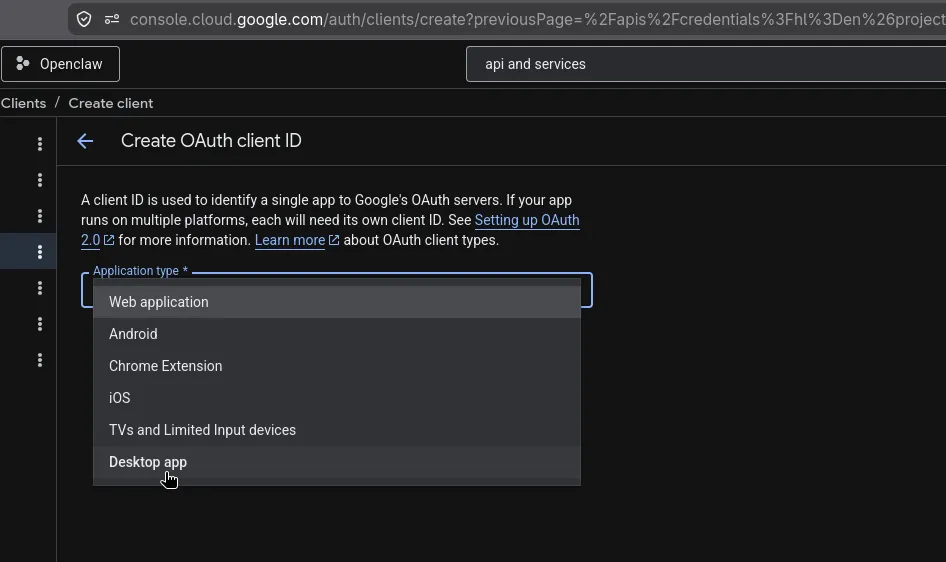
Then create an OAuth client and choose Desktop app.
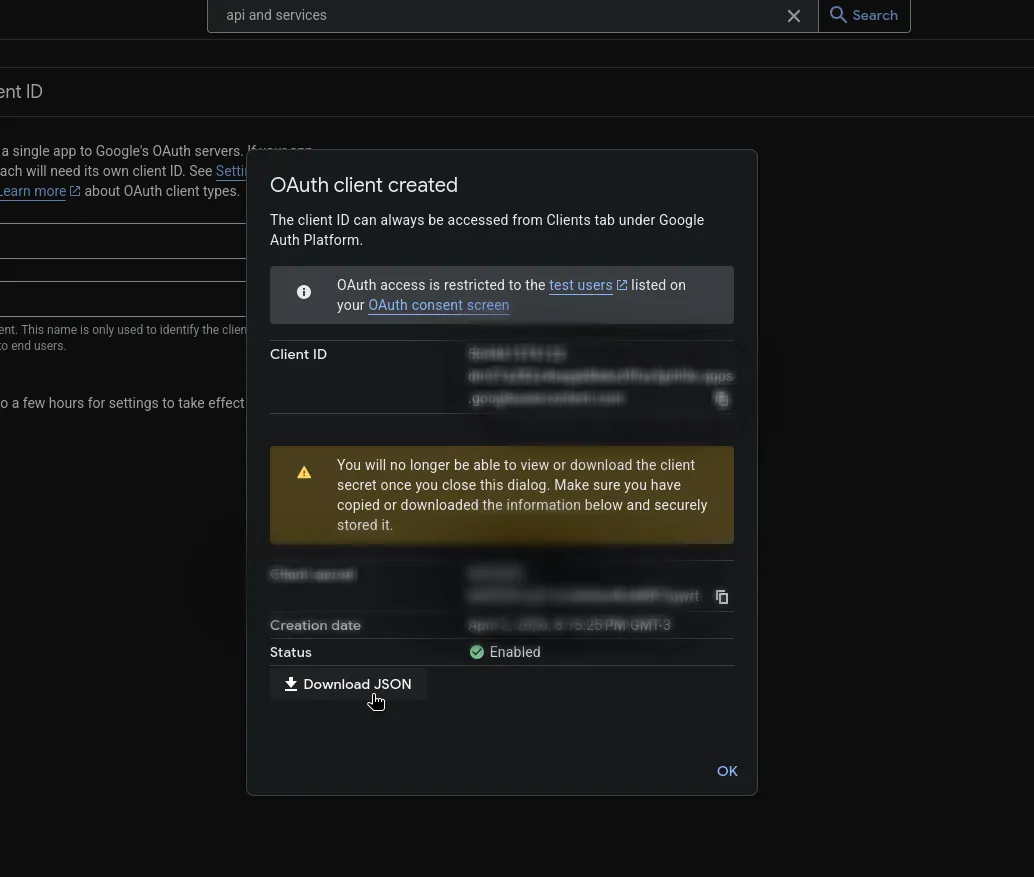
After the client is created, download the JSON immediately and store it safely.
Google usually names it something like client_secret_....apps.googleusercontent.com.json.
Do not commit this file into the repo.
5. Put the secret JSON on the Openclaw host
Pick a dedicated folder outside the git checkout. A good default is:
mkdir -p /opt/openclaw/secrets/google
chmod 700 /opt/openclaw/secrets/google
Save the OAuth client JSON there, for example:
/opt/openclaw/secrets/google/workspace-oauth.jsonTwo practical ways to get the file onto the machine:
Option A: send it through Telegram
Upload the JSON file to Openclaw in Telegram and ask it to save the attachment to:
/opt/openclaw/secrets/google/workspace-oauth.jsonExample prompt:
Save this file to /opt/openclaw/secrets/google/workspace-oauth.json and do not move it into the repo.Option B: copy it with scp
From your local machine:
scp ~/Downloads/client_secret_123.json your-user@your-server:/opt/openclaw/secrets/google/workspace-oauth.jsonThen fix permissions on the server if needed:
chmod 600 /opt/openclaw/secrets/google/workspace-oauth.json6. Install gogcli
Follow the method that fits the host:
Homebrew
brew install gogcliArch
yay -S gogcliBuild from source
git clone https://github.com/steipete/gogcli.git
cd gogcli
make
./bin/gog --help
After installation, verify:
gog --version
gog --help
7. Register the OAuth client with gog
Point gog at the JSON file you saved on the server:
gog auth credentials /opt/openclaw/secrets/google/workspace-oauth.jsonIf you want separate Google projects for different environments, use named clients:
gog --client work auth credentials /opt/openclaw/secrets/google/workspace-oauth.json
gog auth credentials list
For most setups, the default client is enough.
8. Authorize the Google account Openclaw should use
For a server or remote shell, the easiest flow is usually the manual one:
gog auth add [email protected] --services gmail,calendar,drive,docs,sheets,people,tasks --manualWhat happens:
gogprints an authorization URL- Open that URL in a browser on your local machine
- Sign in as the Google Workspace user
- Approve the requested scopes
- Copy the final redirect URL from the browser address bar
- Paste that URL back into the terminal prompt on the server
If you only need read access at first, reduce the requested permissions:
gog auth add [email protected] --services gmail,calendar,drive --readonly --manualIf you later add new services and Google does not return a fresh token, retry with forced consent:
gog auth add [email protected] --services gmail,calendar,drive,docs,sheets --force-consent --manual9. Verify the integration
Set the default account:
export GOG_ACCOUNT=[email protected]Then test a few basic commands:
gog auth status
gog gmail labels list
gog calendar calendars
gog drive ls --max 5
If these work, Openclaw can use Google Workspace from the shell.
10. How Openclaw should use it
Once gog is installed and authenticated on the host, Openclaw does not need direct API integration code for many workflows. It can call gog commands and work with the results.
Typical examples:
gog gmail search 'label:inbox newer_than:3d' --json
gog calendar events primary --today --json
gog drive search 'quarterly report' --json
gog docs export <docId> --format markdown --out ./report.md
For agent reliability, prefer --json output anywhere Openclaw will parse the result.
Recommended scope strategy
Start narrow. Only request the services Openclaw really needs.
- Email assistant:
gmail - Scheduling assistant:
calendar - File assistant:
drive,docs,sheets - People lookup:
people - Task manager:
tasks
This keeps the consent surface smaller and reduces the blast radius if the account is compromised.
Advanced: Workspace service account setup
Use this only if you need domain-wide delegation, admin operations, or Workspace-only APIs that should run without a human signing in interactively.
High-level flow:
- Create a Google Cloud service account
- Enable domain-wide delegation on it
- In Google Workspace Admin, allowlist the OAuth scopes for that service account client ID
- Download the service account JSON key
- Put it on the server, again outside the repo
- Configure
gog:
gog auth service-account set [email protected] --key /opt/openclaw/secrets/google/service-account.json
gog --account [email protected] auth status
This is the right model for org-wide automation, but it is more sensitive operationally because it can impersonate Workspace users if delegation is granted.
Security notes
- Never commit OAuth client JSON or service account JSON into git
- Keep secret files outside the repo, ideally under
/opt/openclaw/secrets/ - Lock permissions down with
chmod 600 - Prefer least-privilege scopes
- Use separate Google Cloud projects for dev and prod
- Remove unused tokens with
gog auth remove <email>
Common failure modes
OAuth says the app is not allowed
The user is probably not in the test-user list on the consent screen audience page.
A command returns 403 insufficient scopes
The token was authorized without the needed service scope. Re-run gog auth add ... --force-consent with the right --services values.
The server has no browser
Use --manual during gog auth add.
Openclaw can run commands manually but not inside automation
Set GOG_ACCOUNT in the runtime environment so the account selection is explicit.
Minimal production checklist
Before you call this done, make sure all of these are true:
- The Google Cloud project is dedicated to Openclaw
- Only required APIs are enabled
- Test users are added if the app is still in testing
- The OAuth JSON is stored at
/opt/openclaw/secrets/google/workspace-oauth.json gog auth credentialshas been run on the hostgog auth add ... --manualcompleted successfullygog gmail labels listor another real command works from the Openclaw host
At that point, Openclaw can use Google Workspace through gogcli with no extra middleware beyond shell access.